Getting started
The interface at a glance
The sidebar, the command palette, and getting around fast.
After signing in you're on the dashboard. Everything is reachable from the left sidebar.
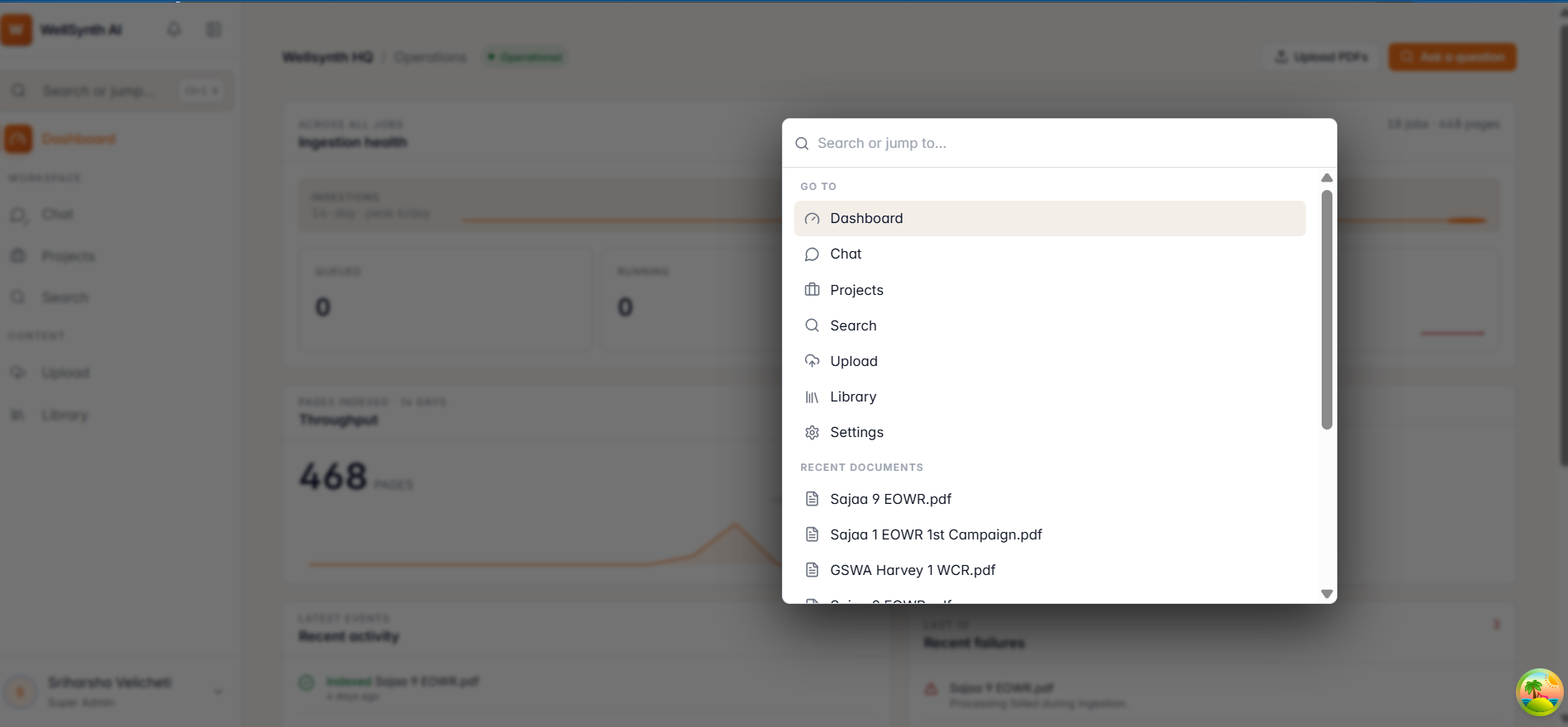
The sidebar
The sidebar groups the app into clear areas:
- Dashboard — your home overview.
- Workspace — Chat, Projects, Search.
- Content — Upload and Library (your documents).
- Insights — reporting and map views, where enabled.
Your avatar at the bottom opens the user menu: Settings, Help, administration (if you're an admin), and Sign out.
Getting around fast
- Command palette — press
Cmd/Ctrl + Kto jump to any page or action without reaching for the mouse. - Collapse the sidebar — press
Cmd/Ctrl + \(or use the toggle) to widen the main area; great while reading or chatting. - Theme — switch between Light, Dark and System in Settings → Appearance.
On smaller screens the sidebar collapses into a menu you open from the top bar.
Tip: the command palette is the quickest way to move around once you know your way — try it before clicking through menus.